Plans & Pricing
Welcome to PODgram.ai's simple and transparent pricing! We believe in making AI-powered creativity accessible to everyone, which is why we start you off with free credits to explore what's possible.
Get Started for Free!
Every new user receives $2 in free credits when they first install PODgram.ai! That's enough to generate dozens of images and test all our amazing features before spending a dime.
Ready to dive in? Give it a try! 🚀
How Our Metered Usage Works
PODgram.ai uses a credit-based system that's super straightforward! Instead of monthly subscriptions or confusing tiers, you simply:
- Add credits to your account when you need them
- Use credits as you create (each command costs a small amount)
- Keep creating until you're ready to add more credits
No expiring credits, no monthly commitments, no surprise bills! You're always in control of your spending. ✨
Service Pricing Breakdown
Here's exactly what each command costs, so you can plan your creative projects:
| Service | Cost per Image | What You Get |
|---|---|---|
| Image Generation | $0.06 | High-quality AI-generated image |
| Background Removal | $0.04 | Clean PNG with transparent background |
| Image Analysis | $0.01 | Detailed description and metadata |
| Vectorization | $0.02 | Scalable SVG vector file |
| Edit | $0.05 | AI-powered image editing |
All prices are per image in USD and subject to change. You'll always see current pricing in the bot before confirming any action.
How to Add Credits to Your Account
Need more credits? Here's how to top up your account in just a few easy steps:
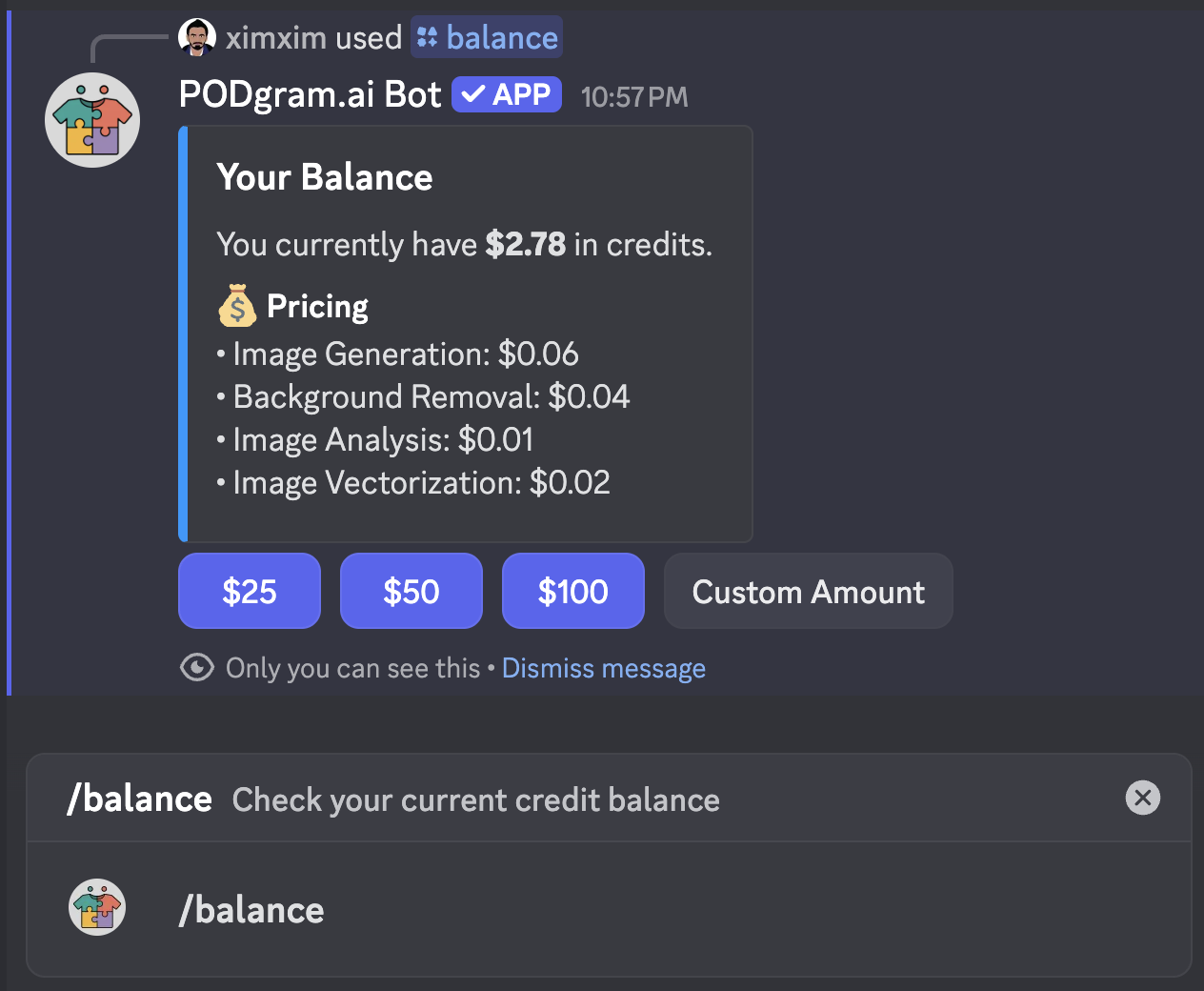
Step 1: Check Your Balance
Start by running the /balance command to see your current credit balance. You'll see three preset amount buttons ($10, $25, $50) plus a custom amount option.
Step 2: Choose Your Amount
Select how much you'd like to add to your account, then click the "Pay with Stripe" button to proceed to checkout.

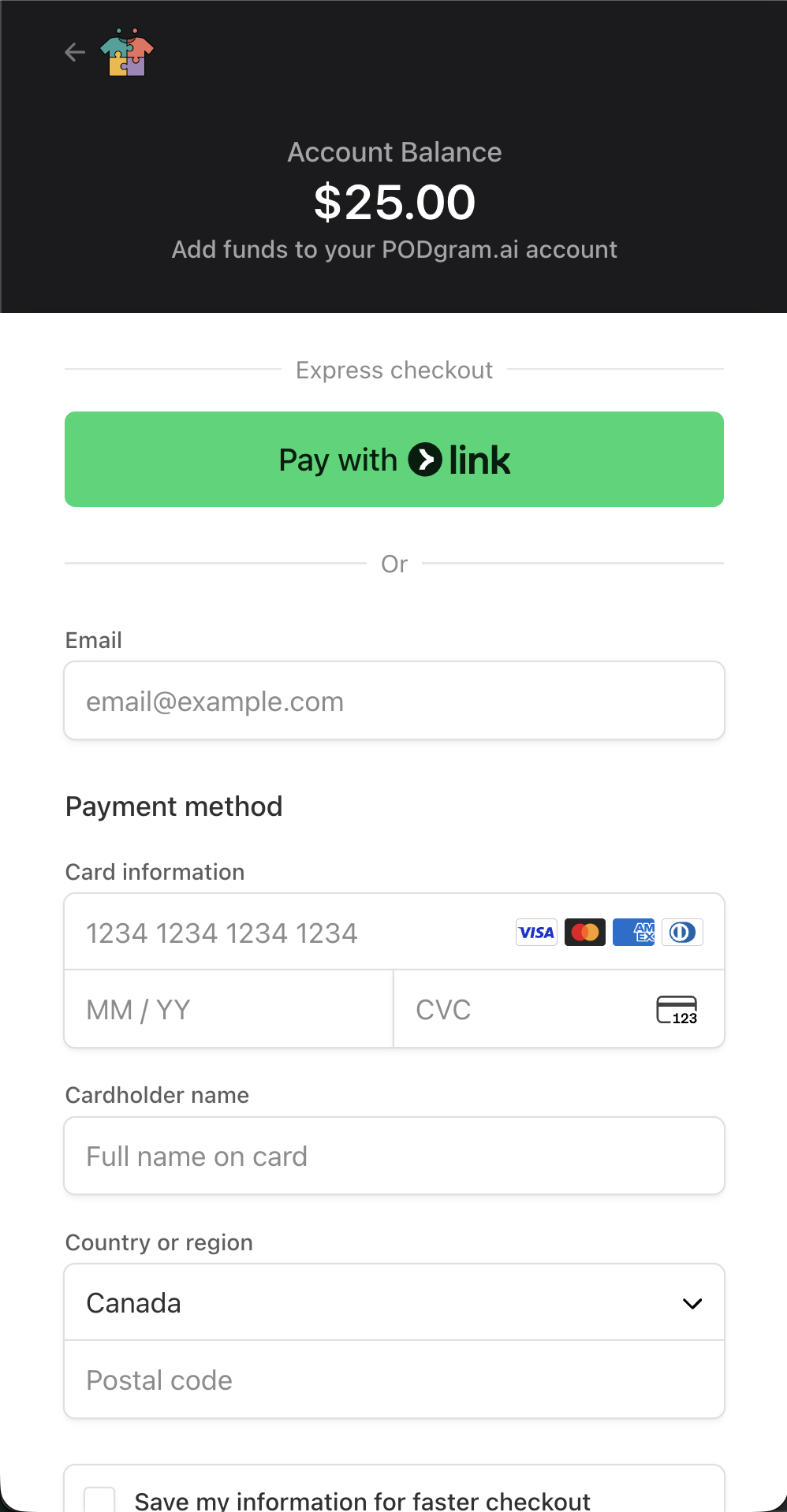
Step 3: Complete Payment
You'll be redirected to Stripe's secure checkout page in your browser. Fill in your payment details and click "Pay" to complete the transaction.
Step 4: Confirmation
Once your payment is successful, you'll receive a confirmation message in Discord letting you know your credits have been added!
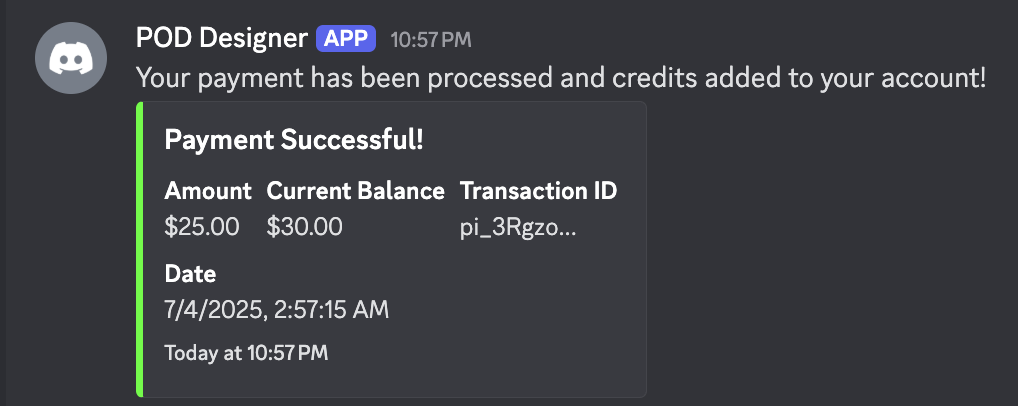
After adding credits, run the /balance command again to confirm your new balance has been updated. If you have any questions or issues, don't hesitate to reach out in our Discord community - we're here to help! 💬
Need Help?
Questions about pricing or having trouble adding credits? We've got you covered:
- 💬 Join our Discord community for instant help from our team and fellow creators
- 📚 Check out our FAQ for common questions
Happy creating! 🎨✨