🎨 Imagine Command
The /imagine command is your gateway to creating stunning AI-generated images perfect for print-on-demand products. This powerful feature allows you to generate up to 4 unique images from a single text prompt.
🚀 Getting Started
To create images, simply type /imagine followed by your prompt in any Discord channel where PODgram.ai Bot is available.

Example:
/imagine prompt: a dog saying "Hello World"
For best results, check out our comprehensive Prompting Guide to learn how to craft effective prompts that generate exactly what you envision!
⚙️ Configuration Options
After invoking the command, you'll see an interactive message with four configuration options to fine-tune your image generation:
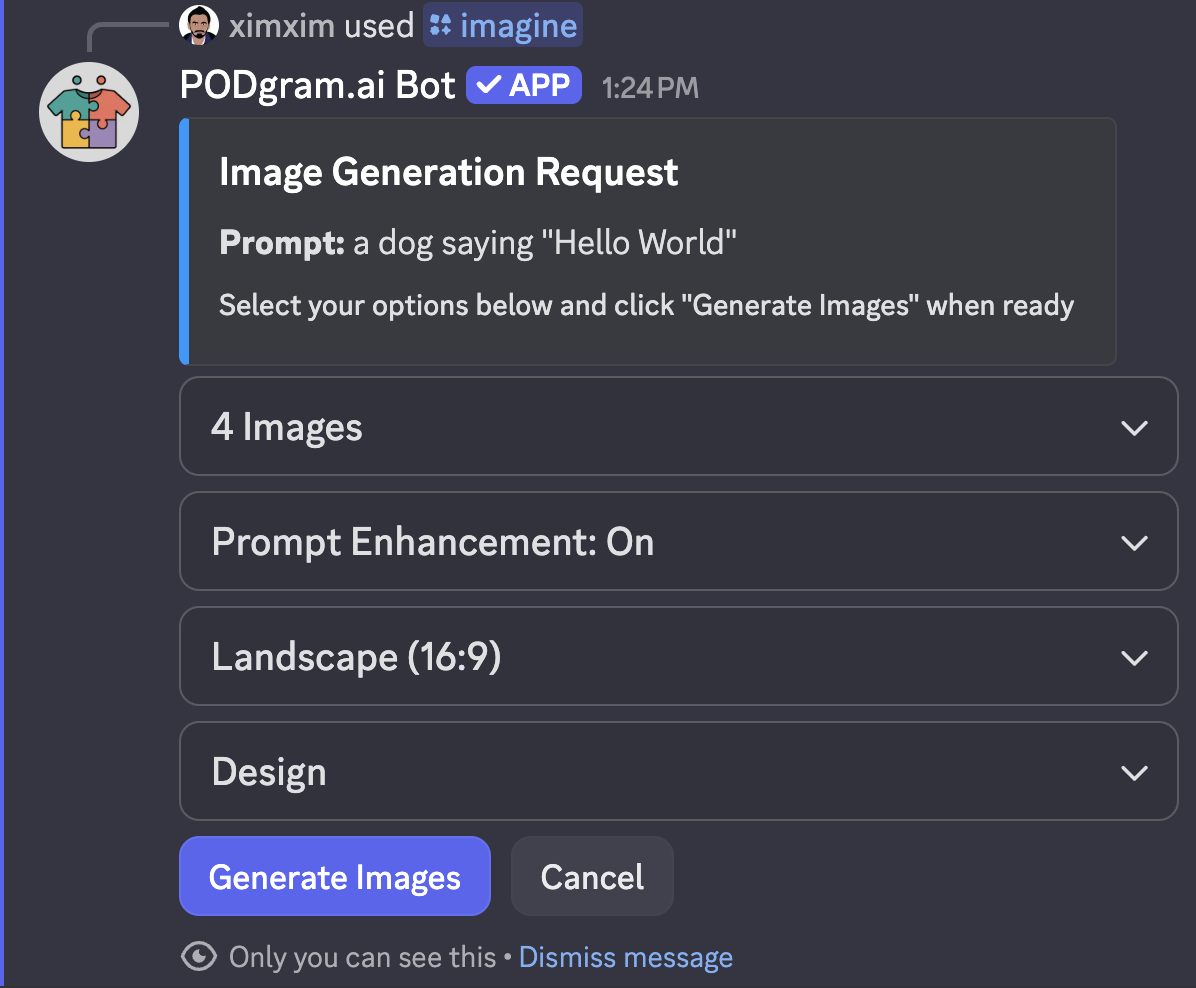
1️⃣ Number of Images
Select how many variations you want to generate (1-4 images). More images give you more options to choose from, but will consume more credits.
2️⃣ Magic Prompt ✨
Toggle the Magic Prompt feature on or off. When enabled, your prompt is intelligently enhanced to optimize for print-on-demand products.
Magic Prompt is specially trained to enhance your prompts for print-on-demand use cases. It automatically:
- Uses solid background colors to make background removal easier
- Takes text literally without making spelling corrections
- Optimizes composition for product printing
- Ensures designs are print-ready and professional
3️⃣ Aspect Ratio
Choose the aspect ratio that best fits your product needs:
- Square (1:1) - Perfect for stickers, coasters, and square prints
- Portrait (4:5) - Ideal for posters and wall art
- Landscape (16:9) - Great for banners and wide prints
- And more options!
4️⃣ Style
Select from various artistic styles optimized for print-on-demand:
- Design - Clean vector-like illustrations
- Photographic - Realistic images
- Vintage - Retro and nostalgic aesthetics
- Minimalist - Simple and modern designs
- And many more styles to explore!
Once you've configured your preferences, click the Generate Images button to start the creation process.
⏳ Generation Process
While your images are being generated, you'll see a loading message summarizing your selections:
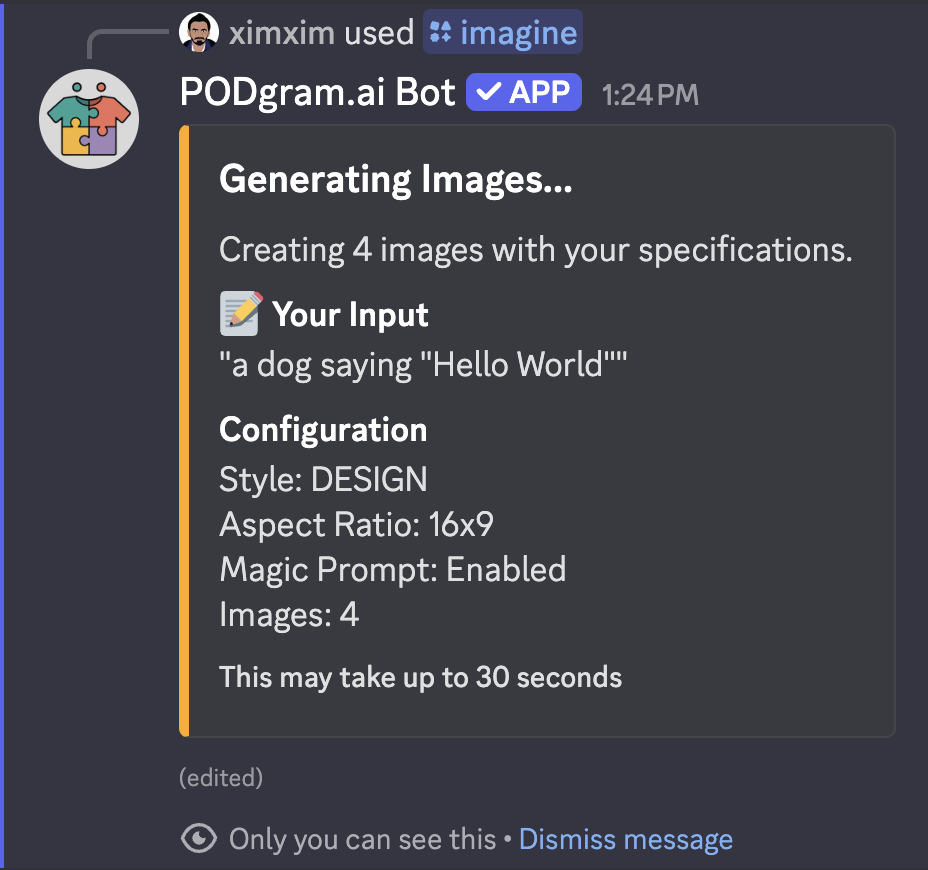
This typically takes 15-30 seconds depending on the complexity of your prompt and the number of images requested.
🎉 Results & Actions
Once generation is complete, you'll receive a message displaying all generated images along with powerful post-processing options:
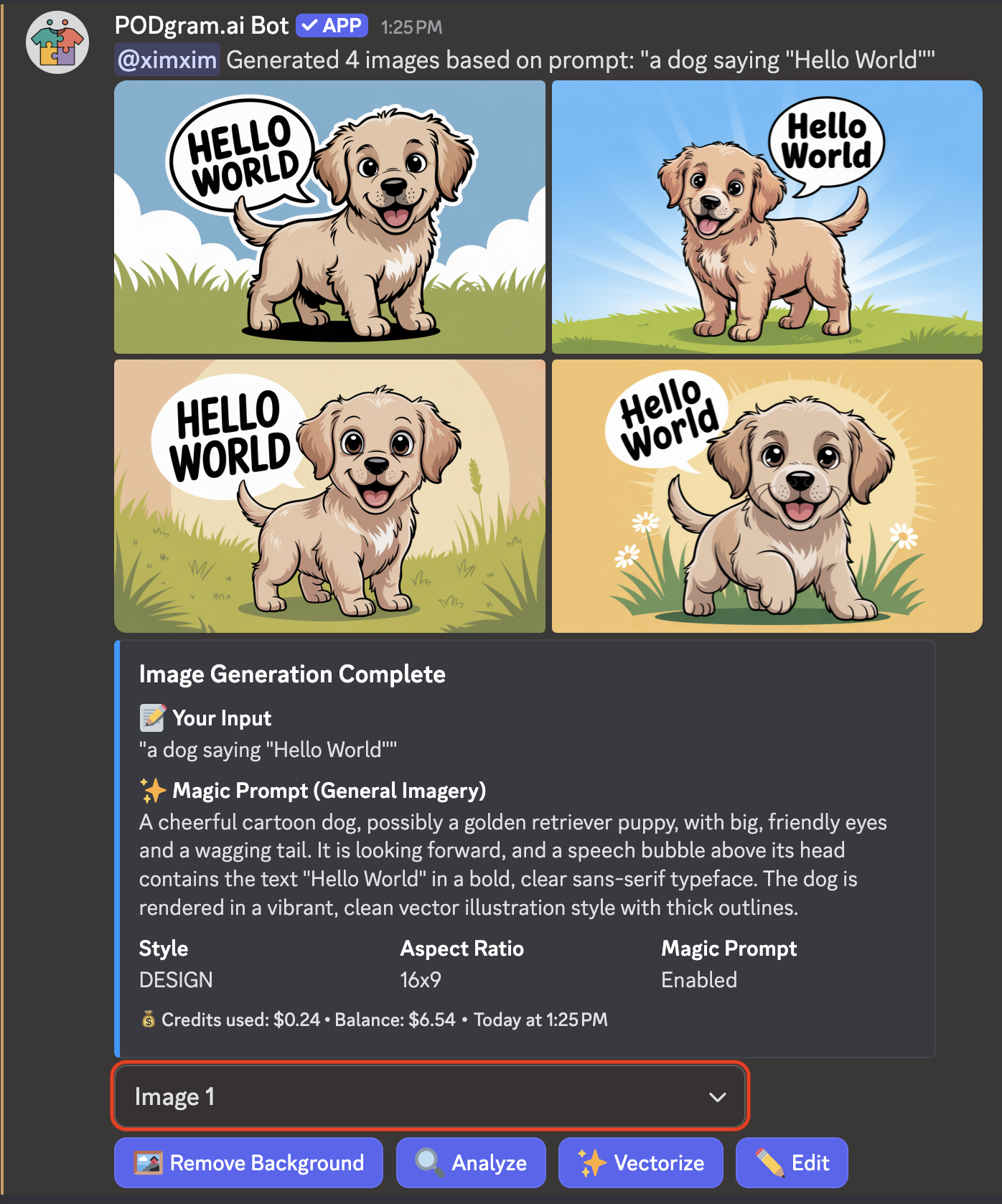
Image Selection
Use the Image dropdown selector (highlighted in red in the screenshot above) to choose which image you want to work with. By default, Image 1 is selected. You can switch between all generated images to perform actions on each one individually.
Available Actions
After selecting an image, you can perform the following actions:
- 🖼️ Remove Background - Automatically remove the background for transparent PNG output, perfect for stickers and apparel
- 🔍 Analyze - Get detailed insights about your image including colors, composition, and print suitability
- ✨ Vectorize - Convert your image to a scalable vector format for unlimited scaling
- 🎨 Edit - Make modifications to your generated image with AI-powered editing tools
Generate multiple images (3-4) to give yourself more options to choose from. You can then use the selector to review each one and pick the best for your product!
💰 Credit Usage
Each image generation consumes credits based on:
- Number of images requested (1-4)
Check your balance anytime using the /balance command.